Integration with Google Drive
This integration enables you to import data from Google Drive into your knowledge base. The data can be automatically synchronised and re-indexed.
Data to import
Files from the specified folder will be imported into the knowledge base. The acceptable formats include Google Docs and all formats supported for manual upload.
Ensure that your files do not contain confidential information. Any data you upload will be indexed and may appear in answers to your customers or employees.
Set up integration
To import data from a Google Drive folder:
-
Go to the Integrations section and click Connect → Google Drive.
If you selected Connect integration when creating the project, you are redirected to the new integration page automatically.
-
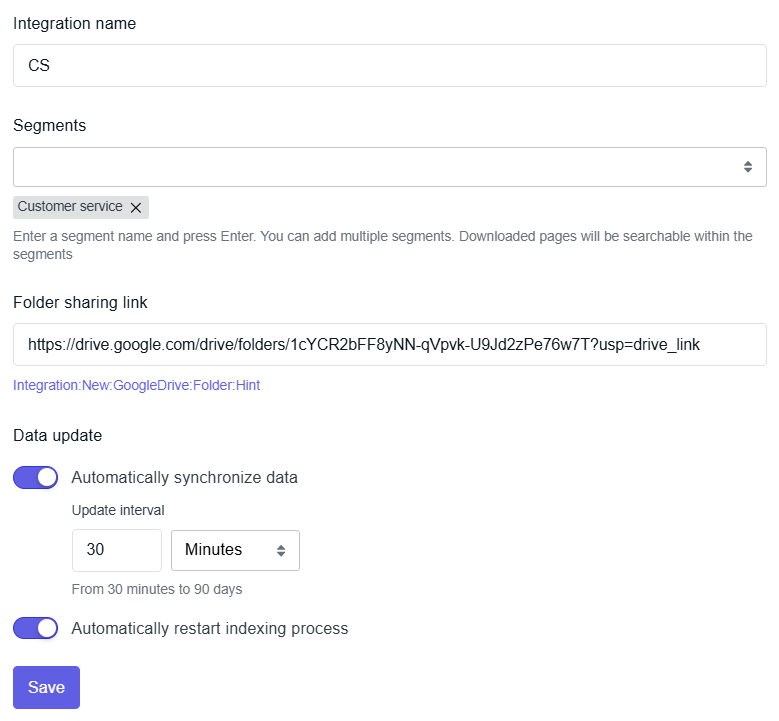
Specify the integration settings:
-
Integration name: Prefix for the names of sources imported from this integration.
-
Segments: Segments to assign to imported sources. Use them to group sources by theme and limit knowledge base queries to specific segments. For more details, see the Segments section.
-
Link to folder
How to get the link
Open Google Drive, right-click the folder and select Share → Copy link.
-
Automatically synchronise data: Enable to keep the knowledge base up to date, or disable for a one-time import.
tipAvoid adding incorrect or sensitive data to the selected folder, as it will automatically appear in the knowledge base during the next synchronisation.
-
Automatically restart indexing: Enable to re-index the knowledge base after each synchronisation.
noteYou can change these settings later.
-
-
Click Connect.
-
A page prompting you to approve the access request will open in a new tab. Sign in to your Google Account and allow the Tovie Data Agent application to access your data.
Immediately after setup, the integration status is “Updating.” When it changes to “Connected,” you can view the imported sources in the Sources section.
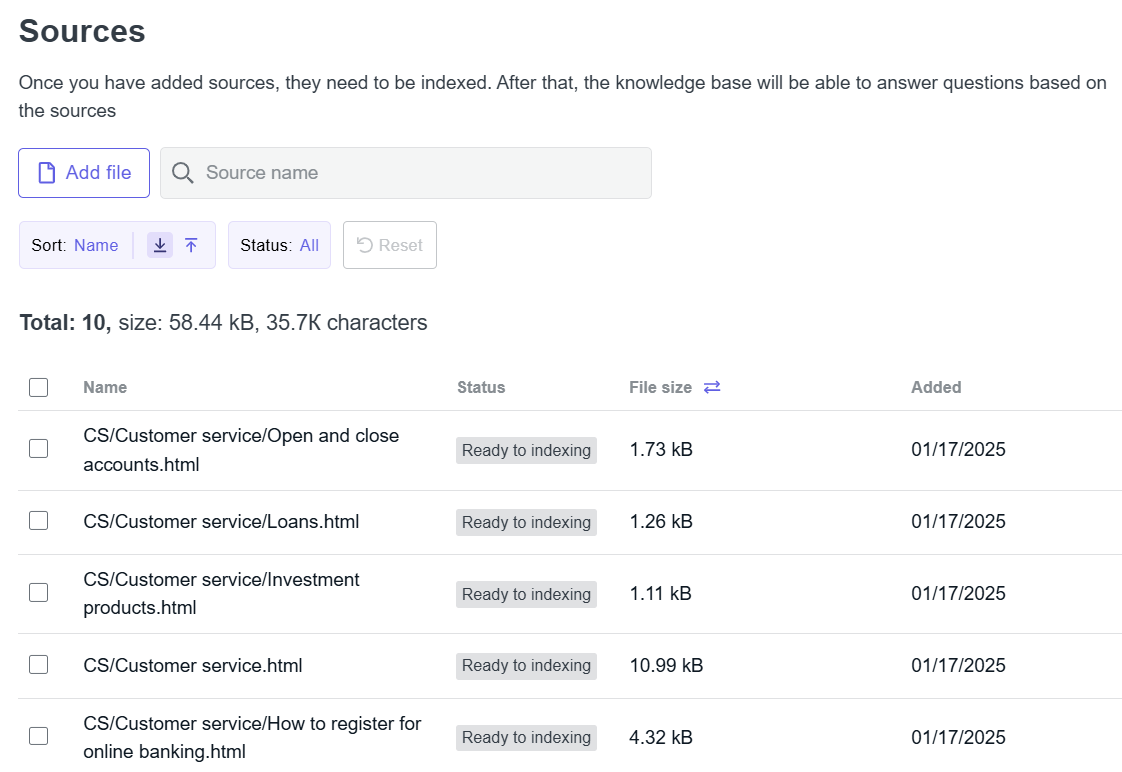
In addition to data from integrations, you can also upload files manually.
After adding data, you need to index the knowledge base.
To learn how to force a synchronisation and change settings, see the Manage integrations section.