Upload files manually
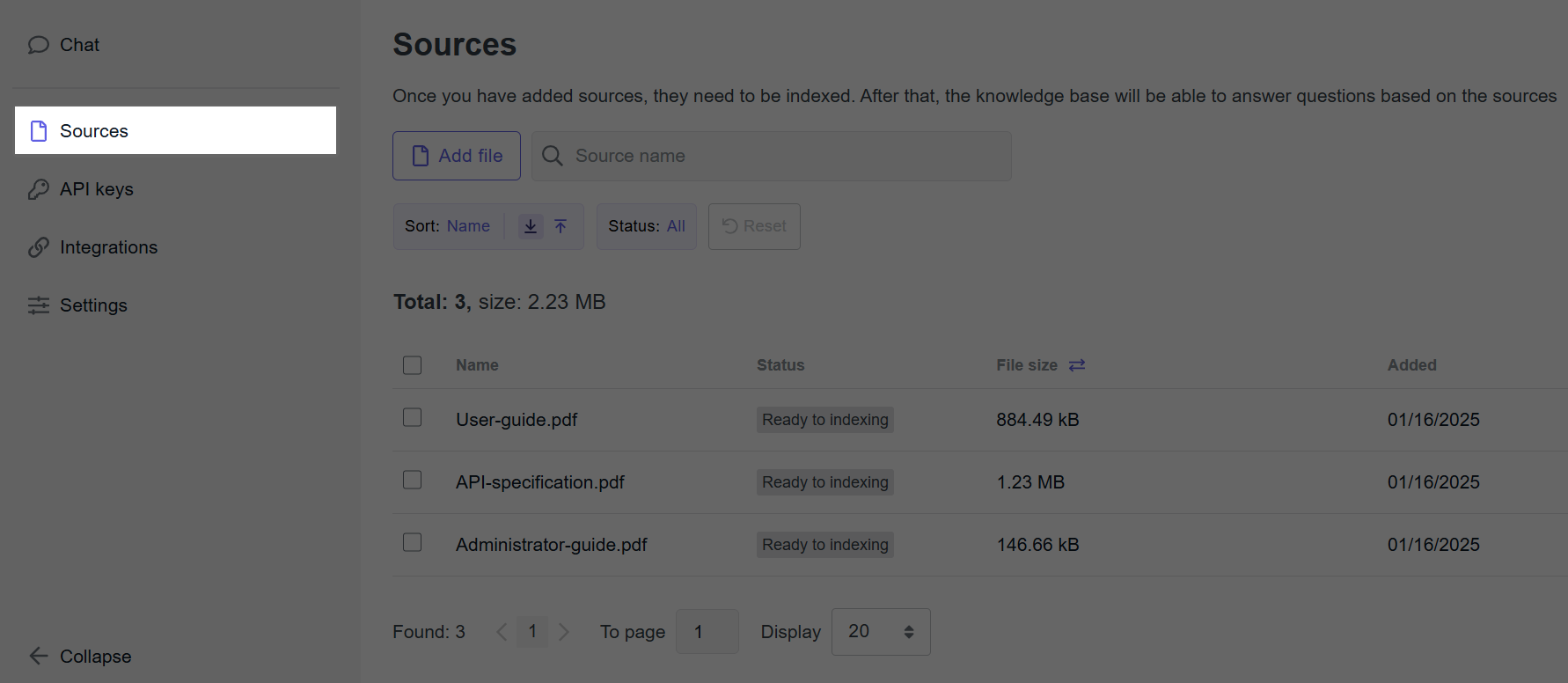
To upload data as files, go to the Sources section and click Add file. If you selected Upload files manually when creating a project, the upload window will open automatically.
You can upload up to 100 files at a time.
info
To upload files, you need at least the KHUB_EDITOR role.
File requirements
-
Text data:
- Accepted formats: DOCX, HTML, JSON, MD, MDX, PDF, PPTX, TXT, XML, YAML/YML.
- Size of one file: up to 25 MB.
-
Tabular data:
- Accepted formats: CSV, XLSX.
- Maximum number of files: 10.
- Maximum file size: 100 MB.
- The first row must contain column headers.
- Accepted delimiters for CSV:
,or;. - XLSX must not contain merged cells.
cautionFor XLSX files, only the first sheet is processed; other sheets are ignored.
-
Audio and video:
- Accepted formats: MP3, MP4, MPEG4, WAV, AAC.
- Size of one file: up to 1 GB.
Resumable upload
Files larger than 40 MB are uploaded in parts. If you close the upload window, the upload will stop. Partially uploaded files are stored for 24 hours.
To continue uploading:
- In the Sources section, click Add file again.
- The upload window displays partially uploaded files. You can remove or add files if needed.
- Click Save.
💡 Tips for uploading
- Ensure that your files do not contain confidential information. Any data you upload will be indexed and may appear in answers to your customers or employees.
- Use text files where the text is recognisable to the system. For example, scanned documents are not always recognised well. This may affect the indexing and the quality of answers to users of your knowledge base.
- When uploading files, you can assign them to knowledge base segments to group them by theme. This lets you restrict searches to specific segments. For more details, see the Segments section.
info
- In addition to files, you can set up integrations to import data from third-party systems.
- After adding data, you need to index the knowledge base.